We use cookies to make your experience better. To comply with the new e-Privacy directive, we need to ask for your consent to set the cookies. Learn more.

Frequently asked questions about the CPFlight Plugin
Frequently asked questions about the CPFlight plugin
- What devices are supported?
- How do I install or reinstall the plugin? How do I upgrade or retrieve my license key? My MCP is not recognized!
- What are the licensing terms?
- What is the PROFESSIONAL license?
- What planes are supported in X-Plane?
- Where can I report a problem, bug or feature request?
- How do I turn on MCP backlight?
- My CPFlight 737 Weather Radar panel doesn't match the Zibo Weather radar panel
- The IAS display on my MCP goes wild when selecting speed in Zibo or Threshold LevelUp
- How do I start up my plane in cold & dark mode?
- My COM and NAV standby frequencies don't match the virtual cockpit
- I have an XYZ hardware. Can you support it?
What devices are supported?
Boeing 737 MCPs and EFISs (BASIC license):
|
Airbus A320 FCUs and EFISs (BASIC license):
|
|
Boeing 737 MIP and Pedestal devices (require ADVANCED license):
|
Airbus A320 MIP and Pedestal devices (require ADVANCED license):
|
|
Boeing 737 Overhead components (require separate OVERHEAD license):
|
Airbus A320 Overhead components (require separate OVERHEAD license):
|
The MCPs, FCUs and OVHs are connected either through USB or Ethernet. Older CPFlight MCPs that use a serial connection are reported to work by using a Prolific or FTDI USB-to-serial converter, but, due to the variety of different models, no guarantee can be given.
Also, note that the USB devices MCP737EL, MCP737PRO/NG, FCU320 as well as the USB connected OVH panels work "plug and play", while the Ethernet MCPs, FCUs and OVHs require manual configuration of their IP address.
If you don't find your device, please send us a mail at support@midwestsimulations.com.
How do I install or reinstall the plugin? How do I upgrade or retrieve my license key? My FCU, MCP or OVH is not recognized!
The CPFlight Plugin Configuration Software handles all these situations. Please observe the installation instructions. You need to use your midwestsimulations.com web store user (which is your email address) and the store password to retrieve a purchased license.
What are the licensing terms?
Every MCP, FCU or OVH is entitled for a free 14 day demo license. After that period, running the plugin requires a valid purchased license. The license is tied to the MCP, FCU or OVH and can be transferred to another user without cost. In order for the new user to be able to request copies of the license, he or she should get in touch with us and require a license transfer in the web store.
If you have an ADVANCED license for an MCP or an FCU, this license also covers the Ethernet-based CDUPROs and the ISFD. You do NOT need to purchase an additional license. If, however, you ONLY run the CDUPRO or the ISFD without an MCP, you will need to purchase an ADVANCED license for these.
Furthermore, a license for the same MCP, FCU or OVH can be used on up to five computers. If you reinstalled you computer from scratch, please rerun the installer and it will be included in the list of authorized computers. If you require a license to work on more than five different computer ids, please get in touch with us at support@midwestsimulations.com.
What is the PROFESSIONAL license?
The PROFESSIONAL license includes these services:
- ADVANCED and OVERHEAD license (full cockpit)
- 8 hours of remote or onsite installation support (not including travel cost)
- Support Service Level Agreement:
- Reaction time during business hours in Germany: 24hrs
- Problem resolution start time: 72hrs
- At least one update with feature improvements per year
You need the PROFESSIONAL license if you are required to run X-Plane Professional, that is, if you are generating revenue, either directly or indirectly, using X-Plane.
What planes are supported in X-Plane?
At this time, the following planes are fully supported:
|
Boeing 737
|
Airbus A320
|
We constantly work on improving this list and suggestions are welcome at support@midwestsimulations.com.
Where can I report a problem, bug or feature request?
On our Gitlab site. Please use the "issue_template" template to make handling easier.
For more specific issues, please contact us on support@midwestsimulations.com.
How do I turn on MCP backlight?
As documented by CPFlight, the Boeing 737 MCP has three options to turn on backlight:
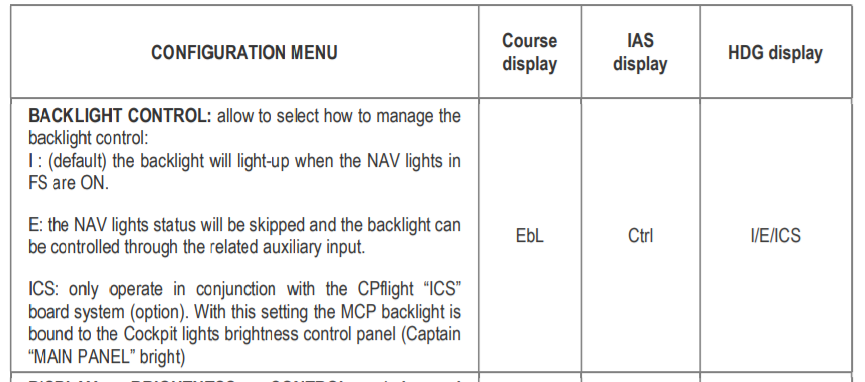
Please check the original CPFlight documentation on how to enter and set configuration options.
In previous versions of the plugin, the MCP backlight indeed was tied to the POSITION lights of the 737. Starting with version 1.4, the plugin resembles the state of the MCP backlight in X-Plane's virtual cockpit.
If you set the backlight control to "I", the MCP hardware has no brightness control: only ON and OFF is possible. The MCP backlight turns on as soon as it is not OFF in X-Plane, independent from X-Plane's MCP brightness level.
However, if you have a CPFlight MIP kit, you should configure MCP backlight with the "ICS" option. This will give you synchronized backlight brightness control on the MIP and the MCP.
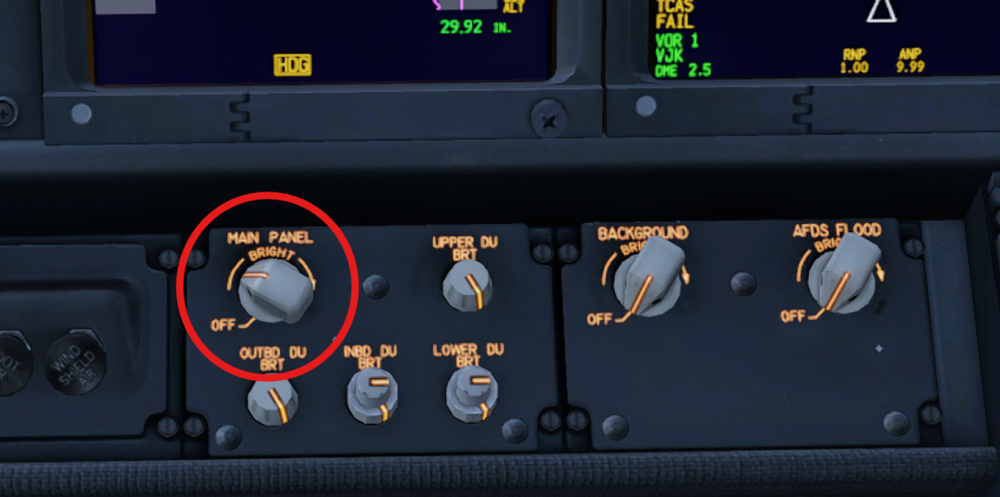
Zibo implements the 737 aircraft logic: With generators OFF, the MCP backlight turns on with full brightness as soon as you turn on the BAT switch. If you have power from one of the generators (APU or engine) or from GROUND POWER, you can control backlight intensity with the MAIN PANEL BRIGHT potentiometer on the captain's side (right behind the yoke). Make sure that it's not set to OFF.
My CPFlight 737 Weather Radar panel doesn't match the Zibo Weather radar panel
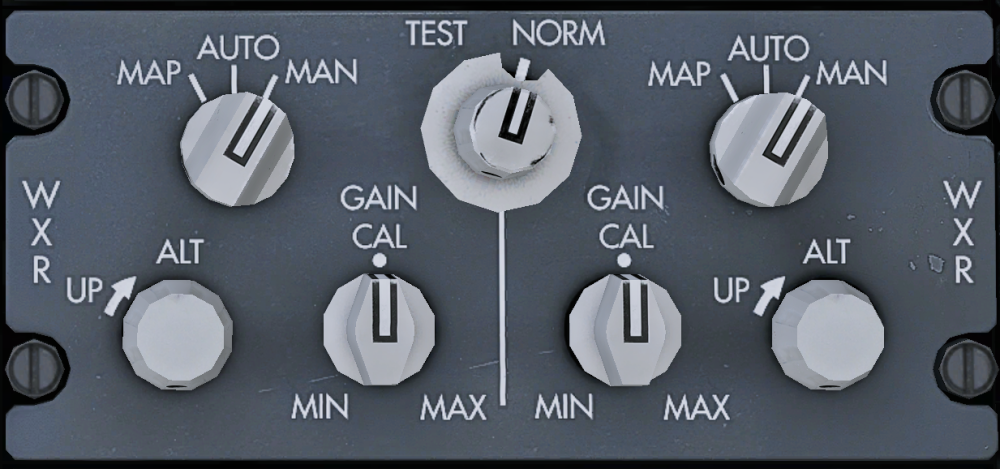
CPFlight offers two versions of the Boeing 737 radio panels. Unfortunately, none of them matches the RDR-4000 panel used in Zibo:
The legacy version of CPFlight's weather panel resembles the Weather Radar of the 737 classic and only has a single dial for each GAIN and TILT:
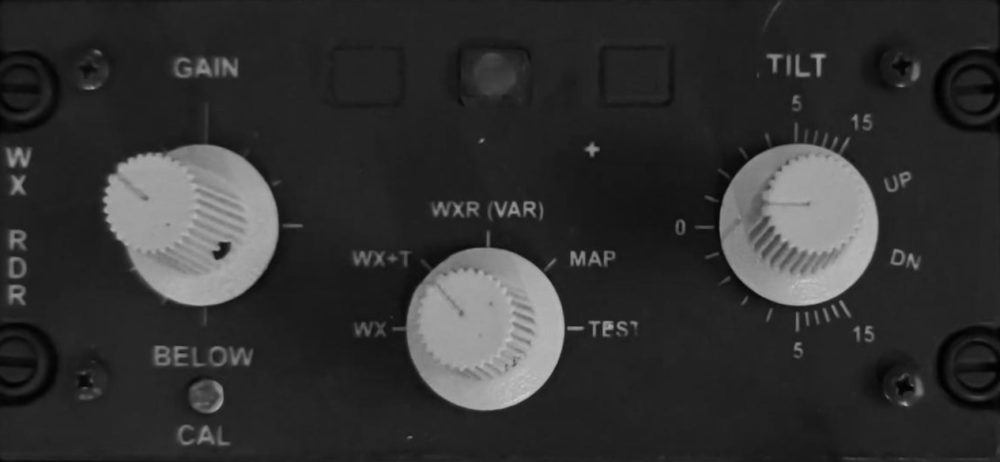
If you rotate the GAIN and TILT buttons on this panel, BOTH GAIN and TILT buttons in Zibo will rotate simultaneously. The mode dial in the center of the panel maps to the following settings in Zibo. Again, both the Captain's mode and the F/O's mode will be set synchronously:
| Mode | Zibo MODE Captain+F/O | Zibo TEST |
| WX | MAN | NORM |
| WX+T | AUTO | NORM |
| WXR (VAR) | (ignored, no change) | NORM |
| MAP | MAP | NORM |
| TEST | AUTO | TEST |
CPFlight's WXR737P radio panel features individual GAIN and TILT control for Captain and first officer and has quite a number of function buttons:
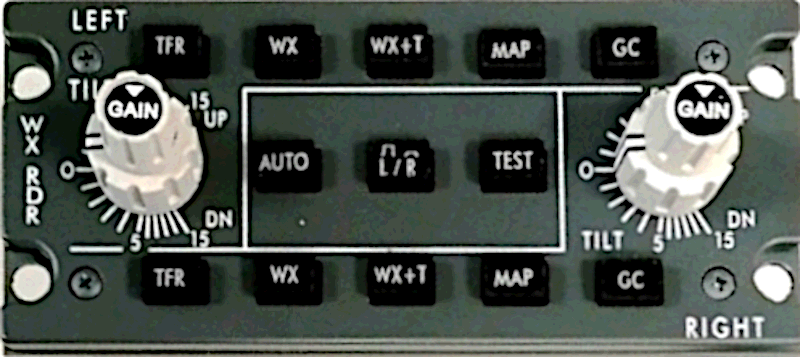
However, not all of these functions exist in Zibo. The GAIN dan TILT buttons work individually and map to the left and right GAIN and TILT buttons in Zibo. The buttons are mapped as follows:
| Button | Function |
| TFR (LEFT/RIGHT) | (not assigned) |
| WX (LEFT/RIGHT) | Sets mode MAN on respective side |
| WX+T (LEFT/RIGHT) | Sets mode AUTO on respective side |
| MAP (LEFT/RIGHT) | Sets mode MAP on respective side |
| GC (LEFT/RIGHT) | (not assigned) |
| AUTO | (not assigned) |
| L/R switch | (not assigned) |
| TEST button | Sets mode TEST while being pressed |
The IAS display on my MCP goes wild when selecting speed in Zibo or Threshold LevelUp
Please make sure to set "SMART AP MCP KNOBS" to OFF in the Configuration/Hardware section of the EFB
How do I start up my plane in cold & dark mode?
Cold and dark mode currently started to work in plugin version 1.1.14 on Zibo 737-800X, other planes will follow soon. In order to enable cold & dark mode, you must configure the MCP's "bAt" setting to "On":

Please follow the original CPFlight MCP documentation on how to enter and set configuration options.
My COM and NAV standby frequencies on the Boeing 737 don't match the virtual cockpit
You may have noticed that the standby frequencies for NAV and COM radios are not updated when you change them on your CPFlight radio panel in Boeing aircrafts. As soon as you switch between standby frequency and active frequency, the latter actually matches your display, but standby may still be off and will not be updated as you turn the frequency selector.
We'd be more than happy to make standby and active frequency always match the virtual cockpit, but, unfortunately, that's out of our control. The issue is that CPFlight NAV and COM radio panels only transmit the ACTIVE frequency. The panel does simply not send out what the user is currently dialing as standby frequency.
So, whenever the active frequency changes (and, honestly, this is the more important one), it will be updated correctly. Standby frequencies, unfortunately, are out of our control.
Now, there's a notable exception: The CPFlight MULTI_VHF modules actually do send standby frequencies, however only for the COM radios.
Do you support other hardware manufacturers?
Yes! We are working with other hardware vendors as well, but cooperation is in an initial phase. We'll soon have more news on this. If you're a hardware manufacturer and you're interested in working with us, please get in touch at support@midwestsimulations.com.